Labels

Showing posts with label SMTP Relay. Show all posts

Wednesday, 23 January 2019

Sending an email via SMTP server on windows server 2012 using Telnet


Before deploying into a production environment, where your deployment involves sending email via an SMTP relay, it is necessary to test the connection to the server where sometimes you are unable to perform a test via the solution that has been developed.  In this case you can use telnet on the server to send the email.  Follow the steps below to send the email via your SMTP server.

1.       First connect to the SMTP server using the steps set out in the following document.  http://www.embersbiztalkramblings.com/2019/01/Connectivity-Testing-Telnet-SMTP-Windows2012.html


2.       Next set the FROM mail address by typing the following :-

MAIL FROM:[test@test.com]

Replace [test@test.com] with the email address you want to send the test email from.

Then press ENTER


3.       Next set the Recipient of the test email by typing the following :-

RCPT TO:[test@test.com]

Replace [test@test.com] with the email address you want to receive the test email.

Then press ENTER


4.       Next type the word DATA and press ENTER

5.       Type the content of your email, and when you have finished press ENTER


6.       Then type “.” And press ENTER

Successful transmission


Failed Transmission


7.       Then type QUIT

 
8.       In the result of a successful test (pictured above in step 6) check the recipients email address and they should have an email.


Testing connectivity between a server and the SMTP server on windows server 2012 using Telnet

Before deploying into a production environment, where your deployment involves sending email via an SMTP relay, it is necessary to test the connection to the server where sometimes you are unable to perform a test via the solution that has been developed.  In this case you can use telnet on the server to prove connectivity.  Follow the steps below to check connectivity on your server.

1.       First get the SMTP email server name and port number that you are planning to connect to

2.       Then verify that the port used by the SMTP server (usually 25) is not being blocked by any firewall in the chain or by the anti-virus server

Ensure that the telnet feature in windows is installed.  If you need to add the feature please check here for instructions on windows server 2012.  https://social.technet.microsoft.com/wiki/contents/articles/22715.how-to-enable-telnet-in-windows-server-2012.aspx

3.       Right click the windows icon in the bottom left of the task bar, then click “Run” and type “cmd” then press ENTER

4.       At the command prompt initiate a telnet session by typing the following :-

       telnet [SMTP_email_server] [Port number] and then press ENTER


The command prompt will change to the name of the SMTP server starting with a 220 line.  If this does not happen then your connection attempt has failed due to one of the following reasons :-
a.       Incorrect server name
b.       Incorrect TCP port
c.       Being blocked by firewall
d.       Being block by a router
Provide all the above details to your network administrator, and they will be able to source the issue.

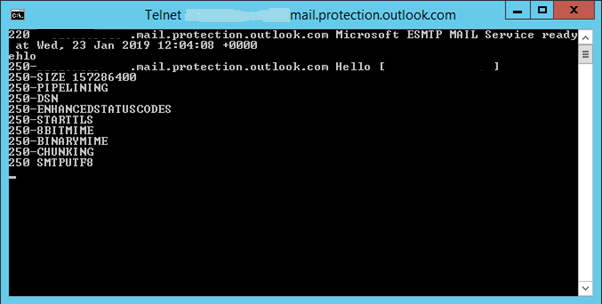
5.       If connection is successful type helo and press ENTER.  The server should respond with hello.  If it doesn’t respond with hello, then you are able to connect to the server but the server cannot authenticate you.  (Again contact your administrator if this is the case)


6.       If step 5 was successful, type ehlo and press ENTER.  This should give you a list of the server attributes.  If it doesn’t respond with the server attributes, then you are able to connect to the server but the server cannot authenticate you.  (Again contact your administrator if this is the case)