Labels

Monday, 29 April 2019

BizTalk 2013 R2 - Increasing the transmission timeouts on a WCF-BasicHTTP Send Adapter


BizTalk 2013 R2 - Increasing the transmission timeouts on a WCF-BasicHTTP Send Adapter


The problem here is that the WCF-BasicHTTP adapter has limited options when setting timeouts for transmissions.

On a two-way transmission the basic adapter only lets you set the Send portion of the transmission and not the Receive.  If you want to specifically set the receive timeouts on the adapter and not use the defaults then you are best using the WCF-Custom adapter.  Please note the blanks in all images are there to exclude existing domain names etc.

In order to set the available timeouts (for this example the Send Timeout) on the adapter follow these steps :-

1.     Go to the left hand pane in the BizTalk Admin Console, then click Send ports


2.       When the Send Port list appears in the right hand pane, double click the Send port that you wish to change the timeout on.


3.       Click the Configure button next to the Type dropdown.


4.       Next click the Binding tab


5.       Alter the time specified in the Send timeout box.  Please note that you are also able to set the maximum received message size and the Send and Close timeouts on this page.


Wednesday, 23 January 2019

Sending an email via SMTP server on windows server 2012 using Telnet


Before deploying into a production environment, where your deployment involves sending email via an SMTP relay, it is necessary to test the connection to the server where sometimes you are unable to perform a test via the solution that has been developed.  In this case you can use telnet on the server to send the email.  Follow the steps below to send the email via your SMTP server.

1.       First connect to the SMTP server using the steps set out in the following document.  http://www.embersbiztalkramblings.com/2019/01/Connectivity-Testing-Telnet-SMTP-Windows2012.html


2.       Next set the FROM mail address by typing the following :-

MAIL FROM:[test@test.com]

Replace [test@test.com] with the email address you want to send the test email from.

Then press ENTER


3.       Next set the Recipient of the test email by typing the following :-

RCPT TO:[test@test.com]

Replace [test@test.com] with the email address you want to receive the test email.

Then press ENTER


4.       Next type the word DATA and press ENTER

5.       Type the content of your email, and when you have finished press ENTER


6.       Then type “.” And press ENTER

Successful transmission


Failed Transmission


7.       Then type QUIT

 
8.       In the result of a successful test (pictured above in step 6) check the recipients email address and they should have an email.


Testing connectivity between a server and the SMTP server on windows server 2012 using Telnet

Before deploying into a production environment, where your deployment involves sending email via an SMTP relay, it is necessary to test the connection to the server where sometimes you are unable to perform a test via the solution that has been developed.  In this case you can use telnet on the server to prove connectivity.  Follow the steps below to check connectivity on your server.

1.       First get the SMTP email server name and port number that you are planning to connect to

2.       Then verify that the port used by the SMTP server (usually 25) is not being blocked by any firewall in the chain or by the anti-virus server

Ensure that the telnet feature in windows is installed.  If you need to add the feature please check here for instructions on windows server 2012.  https://social.technet.microsoft.com/wiki/contents/articles/22715.how-to-enable-telnet-in-windows-server-2012.aspx

3.       Right click the windows icon in the bottom left of the task bar, then click “Run” and type “cmd” then press ENTER

4.       At the command prompt initiate a telnet session by typing the following :-

       telnet [SMTP_email_server] [Port number] and then press ENTER


The command prompt will change to the name of the SMTP server starting with a 220 line.  If this does not happen then your connection attempt has failed due to one of the following reasons :-
a.       Incorrect server name
b.       Incorrect TCP port
c.       Being blocked by firewall
d.       Being block by a router
Provide all the above details to your network administrator, and they will be able to source the issue.

5.       If connection is successful type helo and press ENTER.  The server should respond with hello.  If it doesn’t respond with hello, then you are able to connect to the server but the server cannot authenticate you.  (Again contact your administrator if this is the case)


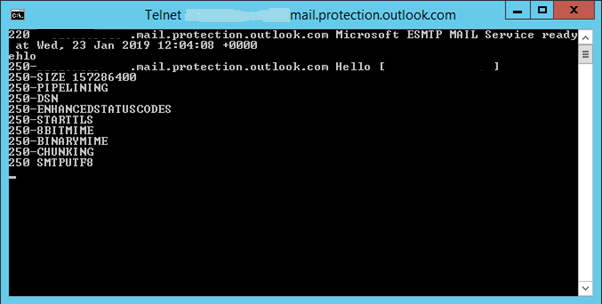
6.       If step 5 was successful, type ehlo and press ENTER.  This should give you a list of the server attributes.  If it doesn’t respond with the server attributes, then you are able to connect to the server but the server cannot authenticate you.  (Again contact your administrator if this is the case)

Wednesday, 13 December 2017

Queue creation in Azure Service Bus

A Service Bus queue provides a first-in-first-out (FIFO) structure for transmitting messages between one (or more) message Producers and one or more message receivers.

What follows is a step by step guide on how to create a queue in Azure, where the following assumptions are made :-
  • You already have a service bus created in the Azure Portal. 
  • You already have an Access Control Service - ACS (this will be deprecated in 2018 and it is no longer possible to create an ACS in the new Azure portal although you can use an already existing one) or Shared Access Signatures - SAS authentication keys created.  
1.Click More Services > from the left hand menu and then select the Service Bus option from the resulting list.


2. Click the Service Bus that you want to attach the queue to from the list


3. This displays the Azure Service bus overview page


4.       Click the Add Queue button in the Queue window


5. Due to incompatibilities with the new partitioning functionality on Azure Service Bus queues and BizTalk 2013 R2 and 2016, you will need to uncheck the Enable Partitioning checkbox in order to avoid transmission errors.


6. After you click the Create button you should see the screen below showing your Queue in an active state.


Tuesday, 9 February 2016

Cannot see an artifact from a referenced assembly in your BizTalk project

If you cannot see any artifacts from the project you have added as a reference in BizTalk, the first thing to check is that you have actually built the project that you are referencing.  If you have not first built the referenced project ... then none of the artifacts in that project will be available for inclusion in your main project.

If you are unsure whether you have built the project and you can't be bothered wasting 5 seconds of your life building it again .. then a simple way to check is to click the project name in the reference list of your main project (where you are wanting to include the artifacts).  Press F4 to expose the properties window and scroll down the properties list until you come to "Strong Name" if this property has a value of "False" then the project you are referencing has never been built.  Rebuild the referenced project and refresh the reference.

Wednesday, 13 January 2016

How to programmatically add Basic Authorization Headers to a message in BizTalk

In order to apply a basic authorization header to a BizTalk transmission over HTTPS you first need to create a c# function in order to construct the header and provide with the relevant username and password

First thing to do is to create a c# project in your BizTalk Solution, and within that project (mines called Test), create a module class called Encryptor.  Within that, create the function BasicAuth as shown in the code below (for you code purists who've noticed .... yes I haven't put a try, catch block in there .... I'll leave that to you :) )

namespace Test
{
    public class Encryptor
    { 
     public static string BasicAuth(string strUser, string strPass)
        {
string strBasicAuth = ""; 
            if (strUser != "" && strPass != "")
              {
                 byte[] toEncodeAsBytes = System.Text.ASCIIEncoding.ASCII.GetBytes(strUser + ":" + strPass);
                string strBasicAuthConv = System.Convert.ToBase64String(toEncodeAsBytes);
                strBasicAuth = "Authorization: Basic " + strBasicAuthConv;
              }
              return strBasicAuth;
        }
     }
 }


So in the function depicted above we create a byte array containing the Username and Password separated by a colon.  Then convert that array to a base64 string and finally prefix that string with “Authorization: Basic “ which will produce a string something like …. Authorization: Basic dXNlcm5hbWU6cGFzc3dvcmQ=

Now in your project which contains the orchestration that will send the message add a reference to the c# project so that you can use the function that you have written 

Next in your orchestration, find your constructed message ….. add a message assignment shape to the message construction block (at the bottom, not necessary but let’s not get fussy about shape position) and add the following code, in the picture below

strUsername and strPassword being the username and password you want to send in your message, CustomerInvoiceOutMsg being the name of the constructed message


Build your projects / deploy and test … job done J

What is Basic Authentication

Sometimes called Basic Auth or Basic Authorization.  

In the context of a transaction over HTTP, basic authentication is a method for an HTTP user agent to provide a user name and password when making a request.  

This method of authentication is often used in B2B transactions to provide an extra layer of security.

Basic Auth provides no confidentiality protection for the transmitted credentials. They are merely encoded with Base64 in transit, but not encrypted or hashed in any way. HTTPS is, therefore, typically preferred over or used in conjunction with Basic Authentication.
When the user agent wants to send the server authentication credentials it can use the Authorization field.
The Authorization field is constructed as follows
1.   Username and password are combined into a string "username:password".
2.     The resulting string is then encoded using Base64.  Taking the above literally, the Base64 interpretation of username:password is ……….. dXNlcm5hbWU6cGFzc3dvcmQ=
3.     The authorization method in this case "Authorization: Basic " is then put before the encoded string.

So the actual basic authentication header to be applied to the HTTP header in this example would be  ………..   
Authorization: Basic dXNlcm5hbWU6cGFzc3dvcmQ=